My blog has been moved to ariya.ofilabs.com.
Showing posts with label color. Show all posts

Monday, February 21, 2011

color wheel on Canvas

While I played with HSV pie and color wheel before, usually I just use the excellent Qt graphics stack to try out various things. This days, I lean towards using web technologies and for that purpose, HTML Canvas suits me just fine. With PhantomJS, I even got the result rendered as PNG image.

The new example I added to PhantomJS is colorwheel.js which produces the above screenshot. The entire script code is as follows (if some parts look cryptic, read about HSL and HSV color space):

if (phantom.state.length === 0) {
    phantom.state = 1;
    phantom.viewportSize = { width: 400, height : 400 };
    phantom.content = '<html><body><canvas id="surface">' +
        '</canvas></body></html>';
} else {
    var el = document.getElementById('surface'),
        context = el.getContext('2d'),
        width = window.innerWidth,
        height = window.innerHeight,
        cx = width / 2,
        cy = height / 2,
        radius = width  / 2.3,
        imageData,
        pixels,
        hue, sat, value,
        i = 0, x, y, rx, ry, d,
        f, g, p, u, v, w, rgb;

    el.width = width;
    el.height = height;
    imageData = context.createImageData(width, height);
    pixels = imageData.data;

    for (y = 0; y < height; y = y + 1) {
        for (x = 0; x < width; x = x + 1, i = i + 4) {
            rx = x - cx;
            ry = y - cy;
            d = rx * rx + ry * ry;
            if (d < radius * radius) {
                hue = 6 * (Math.atan2(ry, rx) + Math.PI) / (2 * Math.PI);
                sat = Math.sqrt(d) / radius;
                g = Math.floor(hue);
                f = hue - g;
                u = 255 * (1 - sat);
                v = 255 * (1 - sat * f);
                w = 255 * (1 - sat * (1 - f));
                pixels[i] = [255, v, u, u, w, 255, 255][g];
                pixels[i + 1] = [w, 255, 255, v, u, u, w][g];
                pixels[i + 2] = [u, u, w, 255, 255, v, u][g];
                pixels[i + 3] = 255;
            }
        }
    }

    context.putImageData(imageData, 0, 0);
    document.body.style.backgroundColor = 'white';
    document.body.style.margin = '0px';

    phantom.render('colorwheel.png');
    phantom.exit();
}

Beside the above example, there are few other things which you'll get in the upcoming PhantomJS 1.1 release, among others support for Unix shebang, file upload for form submission, disable/enable images loading and plugins, as well as support for QUnit integration.

Wednesday, April 22, 2009

Still about color wheel

This is the follow-up to what I wrote before: hue subdivision for mortals.

Seems everyone echoes my sentiment: increasing the coverage area of green is not the right way to go. The easiest explanation is as follows. Since this is an additive color model, due to the higher sensitivity of green, its contribution to other primary colors should be reduced. Effectively, this means we should shrink the green region in the color wheel:

For the "Mortal" version in the above picture, I modified the conversion from hue to RGB (assuming fully saturated color), because I discarded the idea of curve-fitting to map the angle to the hue value. Another change is that I gave up keeping the triangle of the primaries, i.e. while 0 is still red (as an arbitrary reference), 0.333 is not green anymore. The actual position of a color component is now determined by the inverse proportion of its part to the grayscale function. I arrive at 26% red, 17% green, and 57% blue. Unsuprisingly, it means blue now occupies most of the space.

Under each wheel, shown also colors taken from the color wheel, if it is equally divided into eight parts. The result for "Droid" is probably familiar for a lot of people. Comparing it to the "Mortal" version gives an interesting insight. As can be predicted, now the contribution of green is less dominant. Indeed, blue shades are apparent in few more colors. In fact, this arises a problem. The light and dark blue colors (in "Mortal") look too similar. Compare to the light and dark green (in "Droid"). Maybe this is because the weighting factors of 26:17:57 are completely busted? But then, how shall I come up with nice weighting factors?

Seriously, maybe I should just stop trying all this with an additive color model...

Tuesday, April 21, 2009

On hue subdividision for mortals

The use of HSV/HSL color space is obvious when we need to have several colors distributed in an optimal way, colors as unique as possible. For example, SpeedCrunch uses it to autogenerate the colors used for the syntax highlighting feature. The details behind its algorithm was already described by Helder in his Qt Quarterly article Adaptive Coloring for Syntax Highlighting. Basically we use the color wheel and subdivide the hue into equal parts. Primary additive color components are red, green, and blue. This distributes the colors in maximum angular distance with respect to the hue values.

So far so good. However, it was known that human eyes are generally more sensitive to green than other colors. In computer graphics, this is often manifested in the grayscale function, i.e. the function that converts RGB to a grayscale value. Take a peek at Qt's qGray(), it gives the red, green, and blue the weighting factors of 11, 16, and 5, respectively. Shall we take this into account when we subdivide the hue?

If this theory holds, it actually means that a change of shade in the green region should give more perception of change to our eyes then e.g. the same change of shade in the blue region. Another way to say it: the same amount of color difference (to our eyes) corresponds to different angular distances (in the hue component, in HSV/HSL color space) in the green and blue region. Hence, if we want to subdivide green, we can have a smaller spacing there compared to the case where we want to subdivide blue. A simpler way to do it would be to stretch the green region so that it is wider than blue. That way, we just subdivide the color wheels with equal spacings and overall we still get more contributions from green than other components. This is illustrated in the following picture. It will be more "human-friendly", won't it?

Here is a detailed explanation. Suppose a (in the range 0..1) denotes the angular distance relative to a reference. For the purpose of this analysis, assume a=0 means red, 0.333 means green, and 0.667 means blue. This is a 1:1 mapping to the the normalized hue value (in HSL/HSV color space). It is exactly what is shown in the "Machine" version of the color ring in the above picture. On the right, the "Human" version, a=0.333 still means green, same for 0 (red) and 0.667 (blue). However, we see that the yellow color (roughly marks the transition between red and green) is in a different position, same for cyan and magenta. Overall, the coverage area of green is larger, analog to (like previously described) 50% contribution of the green component to the grayscale value. This means that the mapping between a and hue gets more complicated.

A simple solution is to have a custom interpolation between red and green, green and blue, and blue and red. In the case of "Machine", any value a between 0 and 0.333 corresponds to a linear combination between red and green, and thus the middle point (yellow) sits at a=0.167. For the "Human" version, this is not the case anymore. The distance between yellow-red and yellow-green has a proportion of 11 and 16. Thus, yellow sits at a=0.136. If we continue for green to blue and blue to red in a similar fashion, we will arrive at the complete mapping between a and hue.

I decided to take another route. After few minutes experiment with different curve fitting methods, here is an interesting mapping function:

hue = (1.39 - a * (4.6 - a * 4.04)) / (1 / a - 2.44 + a * (0.5 + a * 1.77));

that is exactly the one I used to produce the image of the color rings above. You still need to take care of avoiding divide-by-zero (or rewrite it to avoid division: left as a 5-minute exercise to the curious reader), but otherwise the function is smooth and fast enough to execute on modern machine. Isn't math cool?

Of course, take this with a pinch of salt: likely I make a lot of gross approximation and model simplification.

Personally I still doubt that this will make a big difference. Afterall, you can hardly distinguish two saturated colors when they have a hue distance less than 0.1. They just look the same, unless we play with the saturation and value. We can even attack it from a different point view: since a bit of shade of green provokes our eyes more than blue and red, should not we shrink the green region instead, and thus effectively reducing its contribution? Or maybe we need to use the concept with a different approach? Or let us just forget it and use subtractive color model instead?

Comments? Ideas? Flames?

Thursday, November 13, 2008

Tinting through composition

Another example that I showed in Developer Days was an alternative way to tint an image. Suppose you want to have a little feedback to the user when s/he puts the mouse on an icon, what you can do is to colorize the icon while the cursor is still on top of it. Changing the overall tone of the color of an image can be done in different ways. One obvious way is to convert every pixels from RGB to HSV, perform some manipulations on the hue and perhaps also saturation, then convert back the result to RGB, which will be the final color of those pixels. A rather different and less correct approach (though the result is still visually good) is to convert the image to grayscale and then overdraw a big rectangle with certain composition modes, check out my latest entry on Qt Labs Blogs exactly on that matter: Colorize an image via painter composition.

The included example can also take an image from the web, e.g. drag and drop from Flickr. In case you want to know the trick and/or look for a simple example of QNetworkAccessManager, then follow the simpler code for image viewer with support for remote URL.

Saturday, August 23, 2008

Qt 4.4 and Maemo

After playing a while with Qt 4.4 on my N800 (will be the same for N810), the impression of "slow" (like latest Adam's latest post) is something that I predicted will soon come out. So far, my very brief investigation reveals that the cause for this is both simple and sad: the Maemo's X is running 16-bit visual (N8xx's display is Highcolor only, not Truecolor). Thus, if you do something fancy with 32-bit stuff, like running a QPainter on a Format_ARGB32 or Format_ARGB32_Premultiplied QImage, then basically you force a 32-to-16 conversion every time you blit the image.

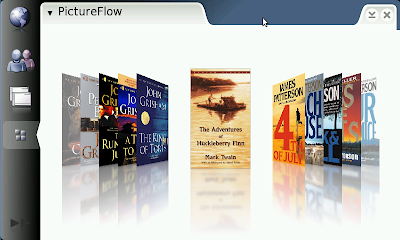
Take a look at PictureFlow, the infamous clone of Cover Flow. You can just checkout it, run qmake and make as usual and start to have some fun (all inside Scratchbox, and after that transfer it to the N8xx).

Surprisingly, it runs horribly slow, probably less than 5 fps. Consider than PictureFlow does its magic by straight pixel manipulation and then just blit the result, this looks really weird. However, it was found out that Qt needs to perform the conversion from 32-bit image to 16-bit pixmap for every single frame, hence the terrible slow down. In short, there is more CPU power wasted for the blitting vs for the rendering. Check your callgrind output to confirm this.

Good news: this is something that can be fixed (both in the application level and probably inside Qt). Personally this one is my favorite aim for Qt 4.5. Once we start to see ported Qt apps for Maemo, we can't afford to allow a potential performance penalty like this, it would just give a wrong impression of Qt. Don't you agree?

Sidenote: 16-bit can be useful because (on a non-accelerated graphics system), you can perform faster full-screen update (less transferred bytes). 32-bit is however easier to handle because each color component lives in a separate byte.

Saturday, July 05, 2008

dojo this week: HSV pie

Update: Fabian Jakobs has ported the Qt/C++ code to HTML Canvas and JavaScript, runnable inside a web browser.

I was having headache fiddling with some fragment programs when Helder (of SpeedCrunch fame) asked me an innocent question that eventually triggered me to write the Graphics Dojo example for this week: rendering the well-known HSV cylinder in 3-D. At first, I thought using a fragment program is the perfect solution, but considering that we are Trolls, let us write a pure Qt solution that works everywhere. So check out the code!

HSV Pie

Unfortunately, in its current state, the code is not really optimized for (near) real-time rendering. If it would have been fast enough (which I guess not really feasible with a non-OpenGL solution), we could have used it for a fancy color picker. Why use a 2-D color picker/dialog when you can have a 3-D one? I'm sure once the 3-D version is introduced, the 2-D version quickly becomes confusing for any creature on this planet.

The question now: shall I do the HSL sphere?

Wednesday, July 02, 2008

Converting between HSL and HSV

Amazingly, tons of code fragments on how to convert between RGB and HSV as well as between RGB and HSL do exist (in any imagineable programming languages). However, googling for HSL to HSV conversion did not reveal anything useful. Maybe I was blind, but there is really no point wasting minutes for something that (should be trivial). A quick glance at the wikipedia article on HSL and HSV gave me the following code:

 1 void hsv_to_hsl(double h, double s, double v,
 2 double* hh, double* ss, double *ll)
 3 {
 4     *hh = h;
 5     *ll = (2 - s) * v;
 6     *ss = s * v;
 7     *ss /= (*ll <= 1) ? (*ll) : 2 - (*ll);
 8     *ll /= 2;
 9 }
10
11 void hsl_to_hsv(double hh, double ss, double ll,
12 double* h, double* s, double *v)
13 {
14     *h = hh;
15     ll *= 2;
16     ss *= (ll <= 1) ? ll : 2 - ll;
17     *v = (ll + ss) / 2;
18     *s = (2 * ss) / (ll + ss);
19 }

Error checking is left as an exercise to the reader, corrections are welcomed. If the code seems to be cryptic, then there is a reason to take a napkin and jot some stuff there...